Before you start
Goal of this walkthrough: show the exact in-app flow from Brand DNA setup to final Create Image result.
User journey (real screens):
- Open Brand DNA and paste URL
- Run extraction (colors, fonts, values, logo)
- Save/confirm extracted brand profile
- Open Create Image with Brand DNA attached
- Send prompt with reference media
- Compare input vs final output
Reality check: Brand DNA is a saved context profile, not a prompt editor and not an auto-approval engine. You still review every output before publishing.
This example uses a Prada workflow to keep the path concrete and verifiable.
Stage 1 — Open Brand DNA and paste your URL
No prompt box here — just the website.
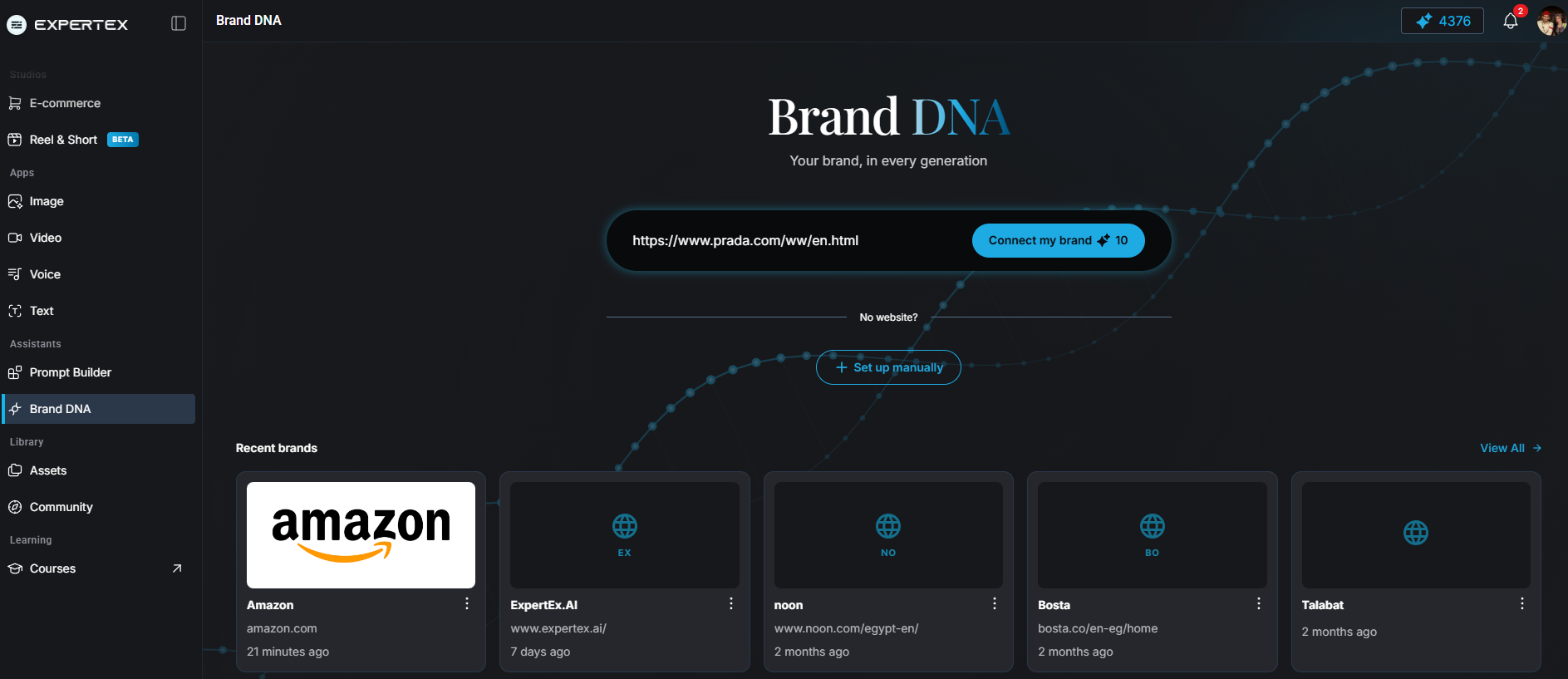
Brand DNA home — URL input, Connect my brand, and recent brands list
What it does: Starts profile creation from a live site.
- Open
/brand-dna. - Paste the official website URL. In this walkthrough:
prada.com. - Tap Connect my brand (extraction costs credits).
- No site yet? Use Set up manually at
/brand-dna/add-manually.
Recent brands appear below the input so you can reopen profiles you already saved.
Brand DNA starts with a URL or a form — not a generation prompt. The prompt comes later, in the suite you generate from.
Stage 2 — Expertex extracts your brand
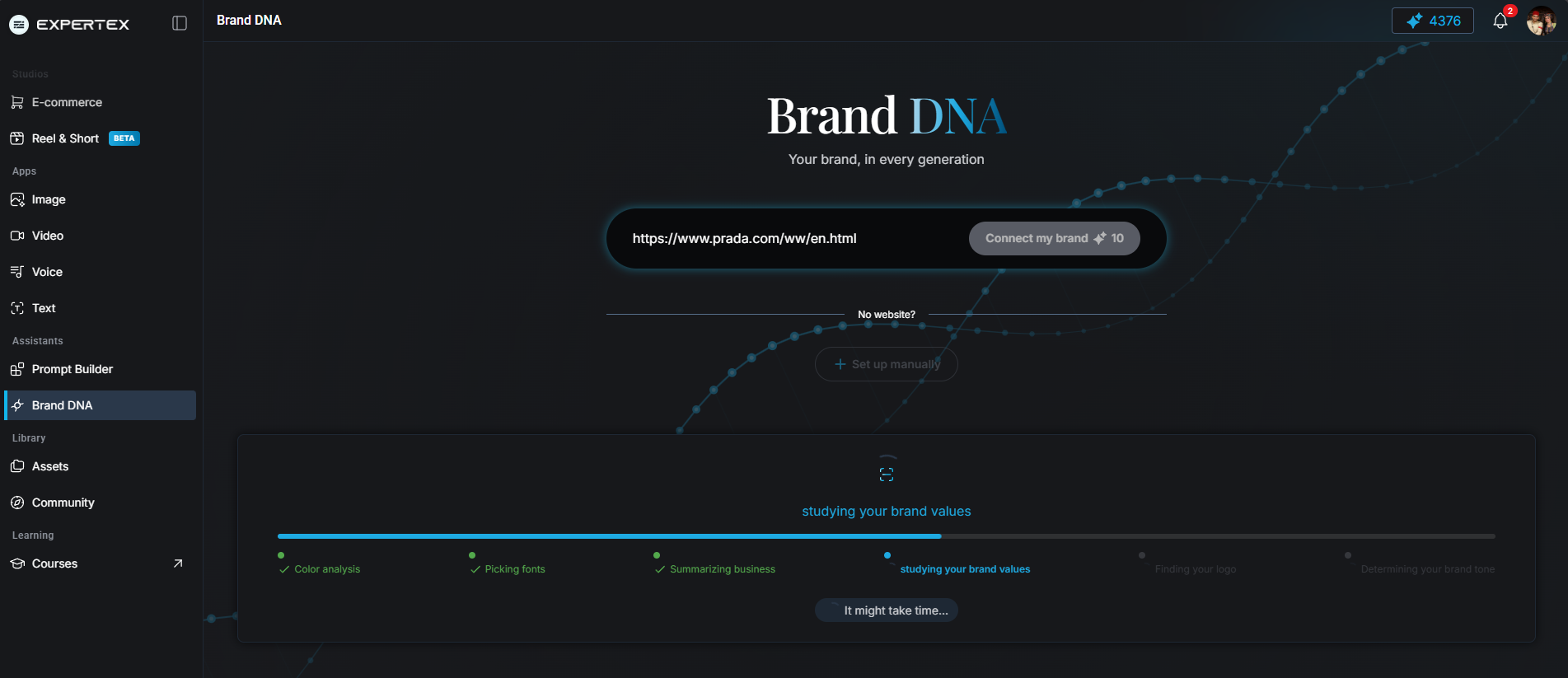
Colors, fonts, summary, values, logo, and tone — in sequence.
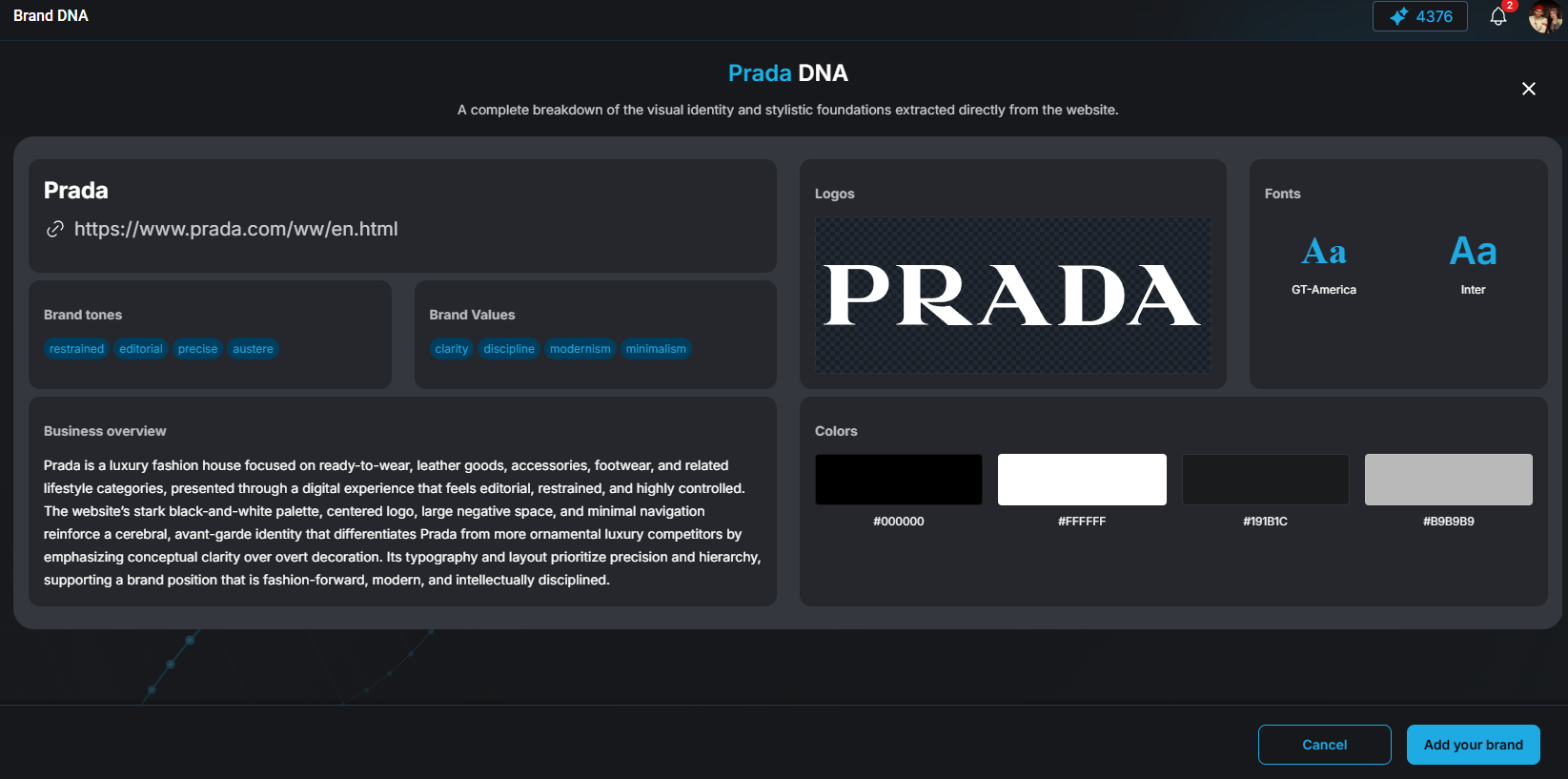
Step 2 — Prada DNA review screen (tones, values, logo, fonts, colors)
What it does: Builds a draft profile from the site while you wait.
Expertex runs steps such as:
- Color analysis
- Picking fonts
- Summarizing the business
- Studying brand values
- Finding the logo
- Determining brand tone
Edit before you trust it. Extract is a starting draft. Wrong hex values or tones should be fixed before the profile lands in your library.
| Saved field | Example from extract |
|---|---|
| Brand name | Prada |
| Description | Luxury fashion overview |
| Tones | restrained, editorial, precise, austere |
| Colors | #000000, #FFFFFF, #191B1C, #B9B9B9 |
| Logos | Extracted PRADA mark |
| Fonts | GT-America, Inter |
| Surface | How you use it | What you still do yourself |
|---|---|---|
| Brand DNA app | Extract URL or add manually; edit; save | Fill profile fields — no generation here |
| Image Generator & selected ImageSuite apps | Select saved brand from the card | Write image prompt; review output |
| Expertex Agent | Pick brand before sending | Write chat brief; approve card |
| VideoSuite Create Video | Attach brand on supported paths | Set scene/motion fields; review frames |
| UGC Ads / Voice / Text | No Brand DNA profile attach today | Keep brand rules in the job brief |
| Reel Studio | Brand DNA toggle is available | Keep full brand profile rules in the brief and review output carefully |
Stage 3 — Save to library, then attach in Image Generator
Profile selection is separate from your creative prompt.
What it does: Hands the saved profile to a generator.
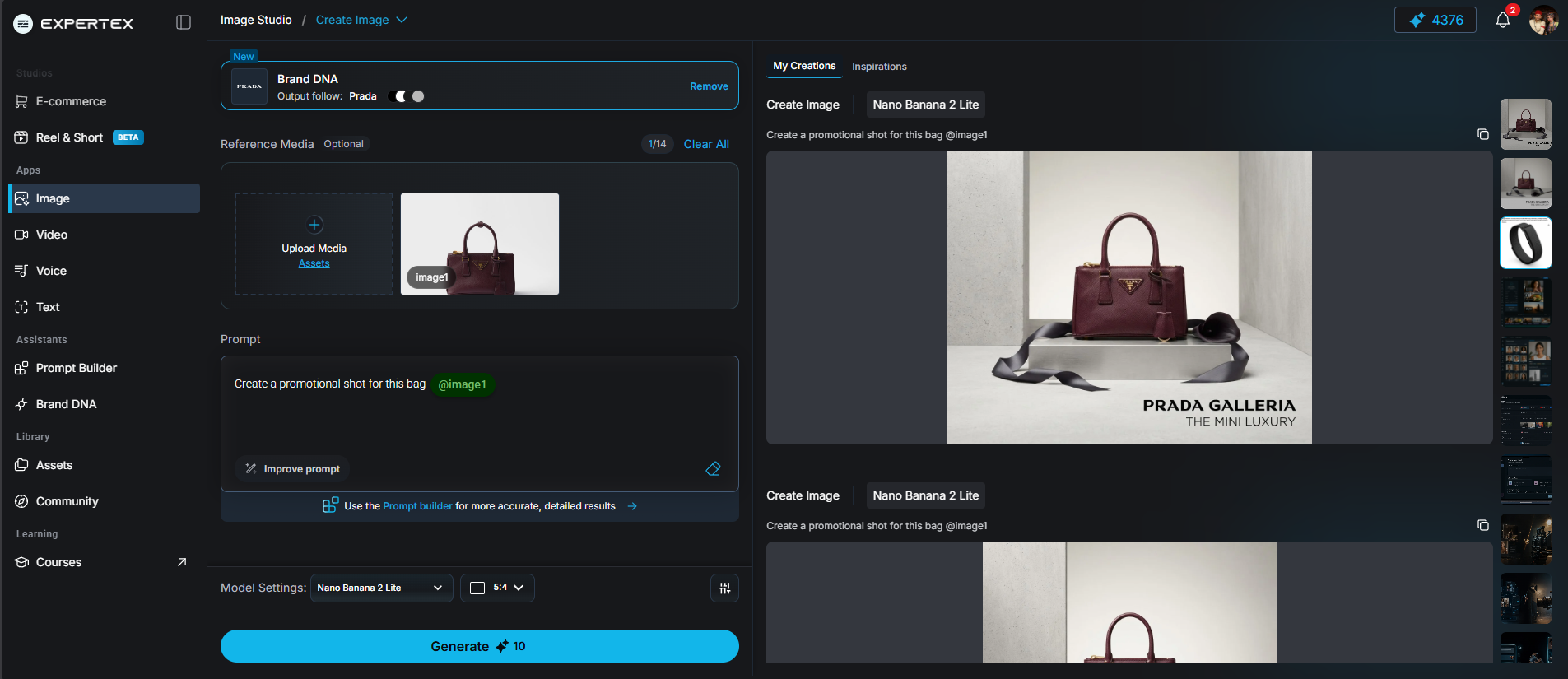
- Confirm the extract, then save Prada (or your brand) to the library at
/brand-dna?view=library. - Open Create Image (or another supported Image app).
- Select the Prada Brand DNA profile from the control.
- Write your scene prompt: product, lighting, composition, copy if needed.
- Generate.
Brand DNA injects palette, tone, and values into the job. It does not replace your prompt or guarantee an exact product replica. Always review packaging, marks, and claims.
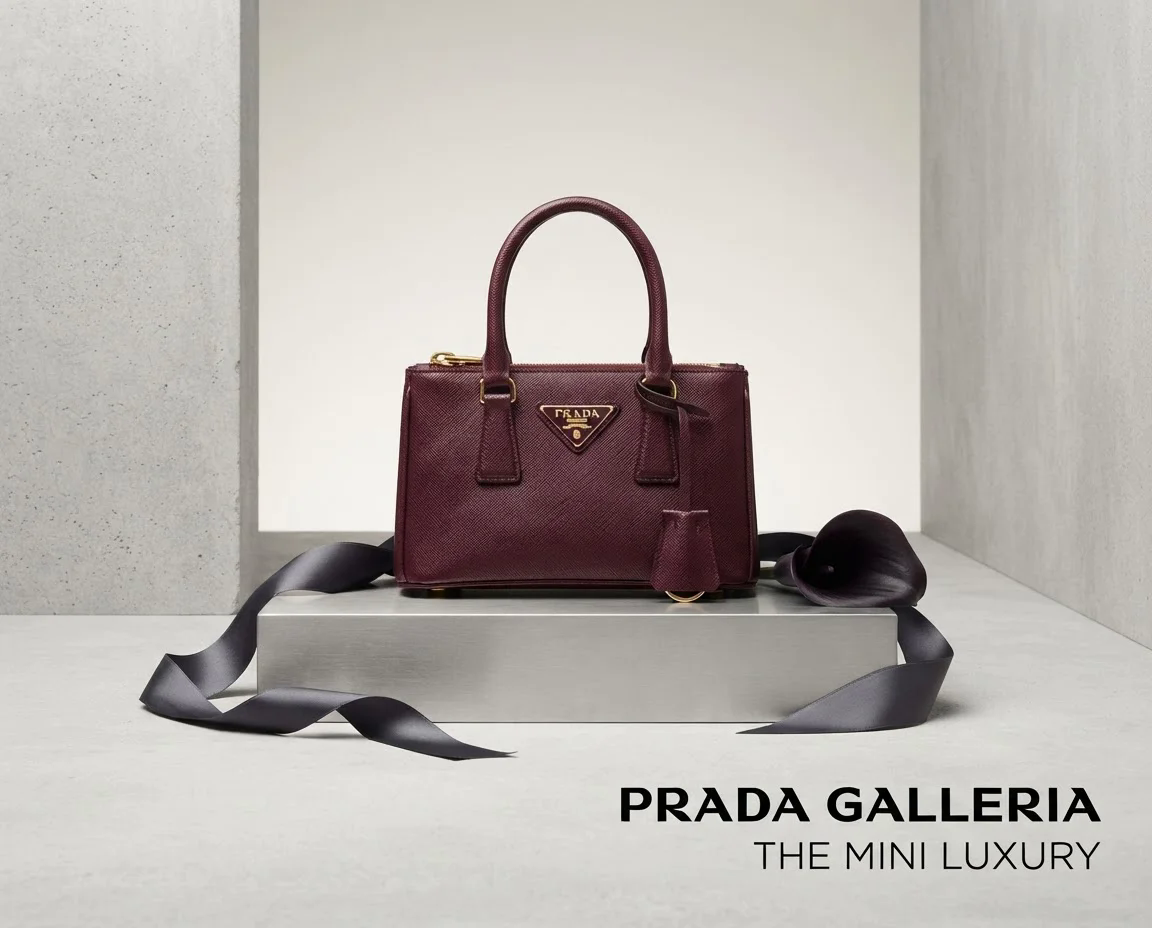
Stage 4 — Example output
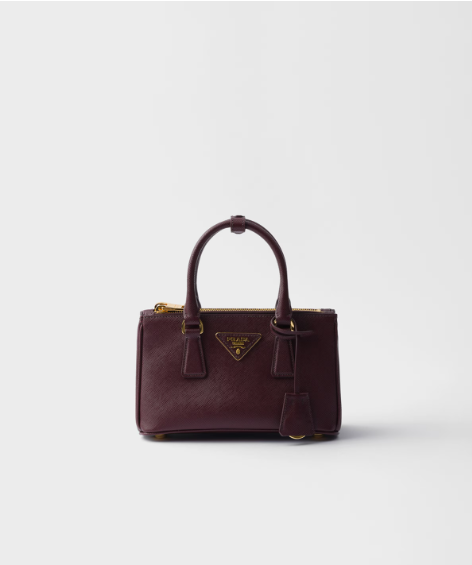
Prada profile attached — luxury product still generated in Image Generator.
What it does: Shows what on-brand guidance can produce when the profile, prompt, and review discipline align.
In this example, the saved Prada Brand DNA profile was attached in Create Image, with a product reference uploaded, then this prompt was used:
Create a promotional shot for this bag
Brand DNA injected palette and tone into the job. The prompt stayed short while the brand profile carried aesthetic direction.
Before you publish: check product accuracy, trademark use, and any copy on the image. Brand DNA guides aesthetics; it does not approve legal or commercial claims.
| Element | Keep in profile | OK to vary per job | Escalate for review |
|---|---|---|---|
| Positioning | Core promise and audience | Campaign emphasis | New promise or audience |
| Voice | Tone principles | Energy, length, format | Regulated or sensitive claims |
| Visual identity | Palette and mark rules | Composition accents | Unapproved logo treatment |
| Product facts | Verified source info only | Order and detail level | Any new factual claim |
| Examples | Why an asset was approved | Channel adaptation | Conflicting guidance |
Stage 5 — Review before you publish
Two passes — concept first, execution second.
What it does: Catches what Brand DNA cannot police.
Pass 1 — Concept
- Right promise for the right audience?
- Voice aligned with profile principles?
- Campaign exceptions documented?
Pass 2 — Execution
- Copy, hierarchy, accessibility, safe areas
- Packaging and product accuracy
- Logo/mark use only with rights
- No invented pricing, stats, testimonials, or urgency
Pre-publish checklist
- [ ] Correct Brand DNA profile attached
- [ ] Visual mood matches palette/tone guidance
- [ ] Product checked against approved reference
- [ ] Channel requirements met
- [ ] Named approver signed off
Honest limits
Guidance helps — it does not guarantee compliance or pixel lock.
| Limit | Detail |
|---|---|
| Scope | Not every Expertex suite accepts Brand DNA profile attach |
| Fidelity | No guarantee of exact hex, typography, logo geometry, faces, or products |
| Logos | Stored on profile; not auto-composited into every frame |
| Legal / claims | Brand DNA does not validate whether a claim is supportable |
| Extract | Costs credits; may need manual cleanup |
Related workflows
- Expertex Agent — attach Brand DNA, then approve before credits spend
- AI product photography — packshot fidelity before branded campaigns
- Responsible AI UGC ads — when Brand DNA is not the front door
Save the brand once, attach it where the UI allows, write your normal brief — then approve the asset like you would any campaign work.