Before you start
What this post does: Walks the real Expertex Prompt Builder path. You write a short idea on the start page, choose Image Prompt or Video Prompt, tune settings on the build screen, then copy the structured result into Image Studio, Video Studio, or another generator.
Important: Prompt Builder does not generate final images or video. It produces a production brief: subject, scene, lighting, camera, motion, and constraints, organized for the medium you selected.
A useful prompt is not a pile of adjectives. It is a compact brief that explains what must appear, how it should feel, which details matter, and what should be avoided. Models still interpret that brief, so no prompt guarantees an exact result, but clear structure makes iteration more purposeful.
Start here:
- Prompt Builder
- Expertex Agent (optional chat entry for image/video jobs)
- Create AI video with Expertex
Stage 1 — Start page: write your idea
If you only remember one screen, remember this.
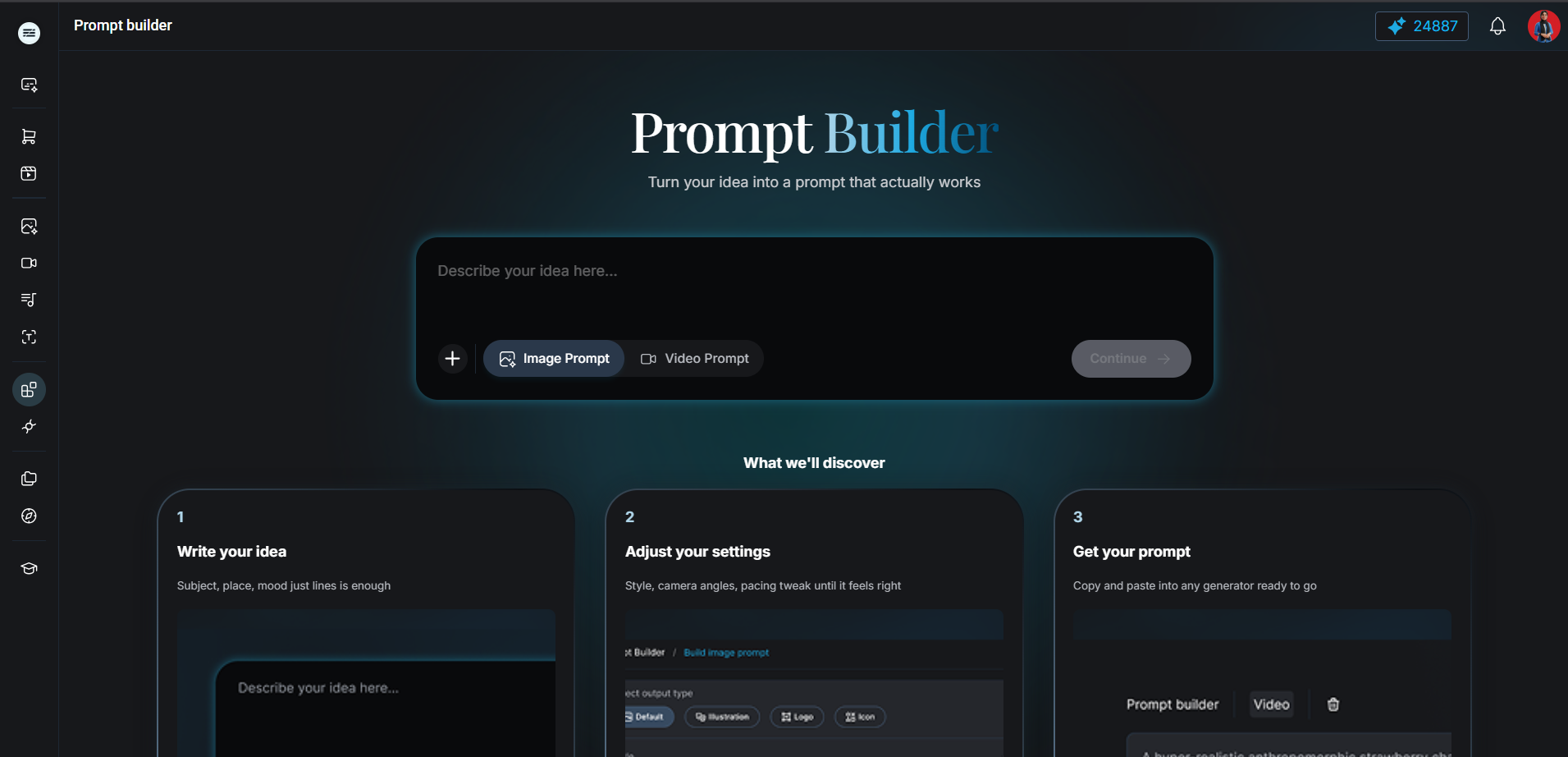
Prompt Builder start page — idea input, Image/Video toggle, optional reference upload, and Continue
What it does: Matches the live Prompt Builder landing UI at /prompt-builder.
The What we'll discover cards summarize the loop:
- Write your idea — Subject, place, mood just lines is enough
- Adjust your settings — Style, camera angles, pacing tweak until it feels right
- Get your prompt — Copy and paste into any generator ready to go
If you upload a reference image, Continue runs image analysis first, then opens the build screen with detected settings when matches exist.
| UI control | What you do |
|---|---|
| Idea field (placeholder: Describe your idea here...) | Describe subject, place, and mood in plain language |
| Image Prompt / Video Prompt | Choose the medium before you continue |
| Reference image upload (plus icon) | Optional. Prompt Builder can analyze it and pre-fill selectors on the build screen |
| Continue | Opens /prompt-builder/create with your idea carried forward |
Clarity beats decorative language. A prompt is a production brief — not a search for magic words.
Stage 2 — Image prompt: tune settings, then build
Default, Logo, Icon, or Illustration — each output type exposes different selectors.
Watch how Prompt Builder switches between Default, Logo, Icon, and Illustration tabs while you tune Style, Composition, and Lighting.
What it does: Shows the Build Image Prompt screen at /prompt-builder/create after you continue from the start page. The video below demonstrates switching between output types while you refine settings.
Image path
- Open Prompt Builder and choose Image Prompt.
- Enter your idea and tap Continue.
- Under Select output type, pick Default, Logo, Icon, or Illustration.
- In Basic, set Style, Composition, and Lighting (plus other selectors the active type exposes). Use Advanced controls when needed.
- Optionally choose a Target model so the prompt is built for a specific generator (Your prompt will be built specifically for this tool.).
- Add Negative prompt (optional) when you need exclusions.
- Tap Build my prompt. The structured result appears under My Creation on the right.
- Copy the prompt, or open details and use Use this prompt to jump into Image Studio with the text carried over.
Put ratio, model, and other interface controls in the generator when they exist. Do not duplicate or contradict them in prose.
What it is not
A final render, auto-publisher, or proof that generated text will behave identically across every image model.
Stage 3 — Video prompt: enter the brief
Same start page — switch to Video Prompt before you continue.
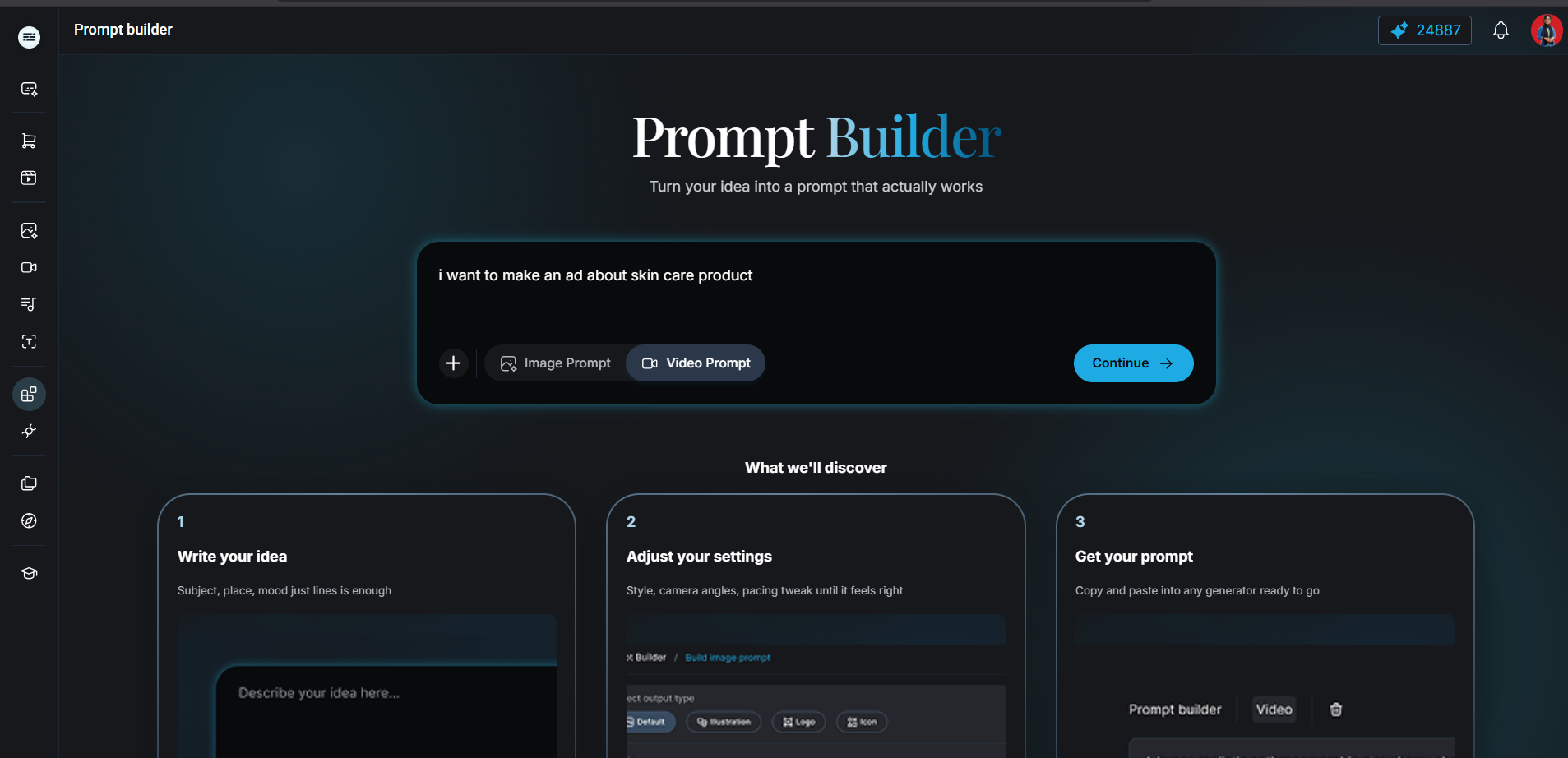
Prompt Builder start page with Video Prompt selected and a skincare ad idea entered
What it does: Shows how a video brief starts on the landing page.
For motion, write the opening state, subject action, camera behavior, and ending state in plain language. A short clip with one clear movement is easier to evaluate than a paragraph containing several cuts.
Example idea from a real run: "I want to make an ad about a skincare product." This is enough to continue. Prompt Builder will ask you to refine pacing, camera, and style on the next screen.
Stage 4 — Video prompt: build with motion settings
Video selectors differ from image — plan movement separately from the still frame.
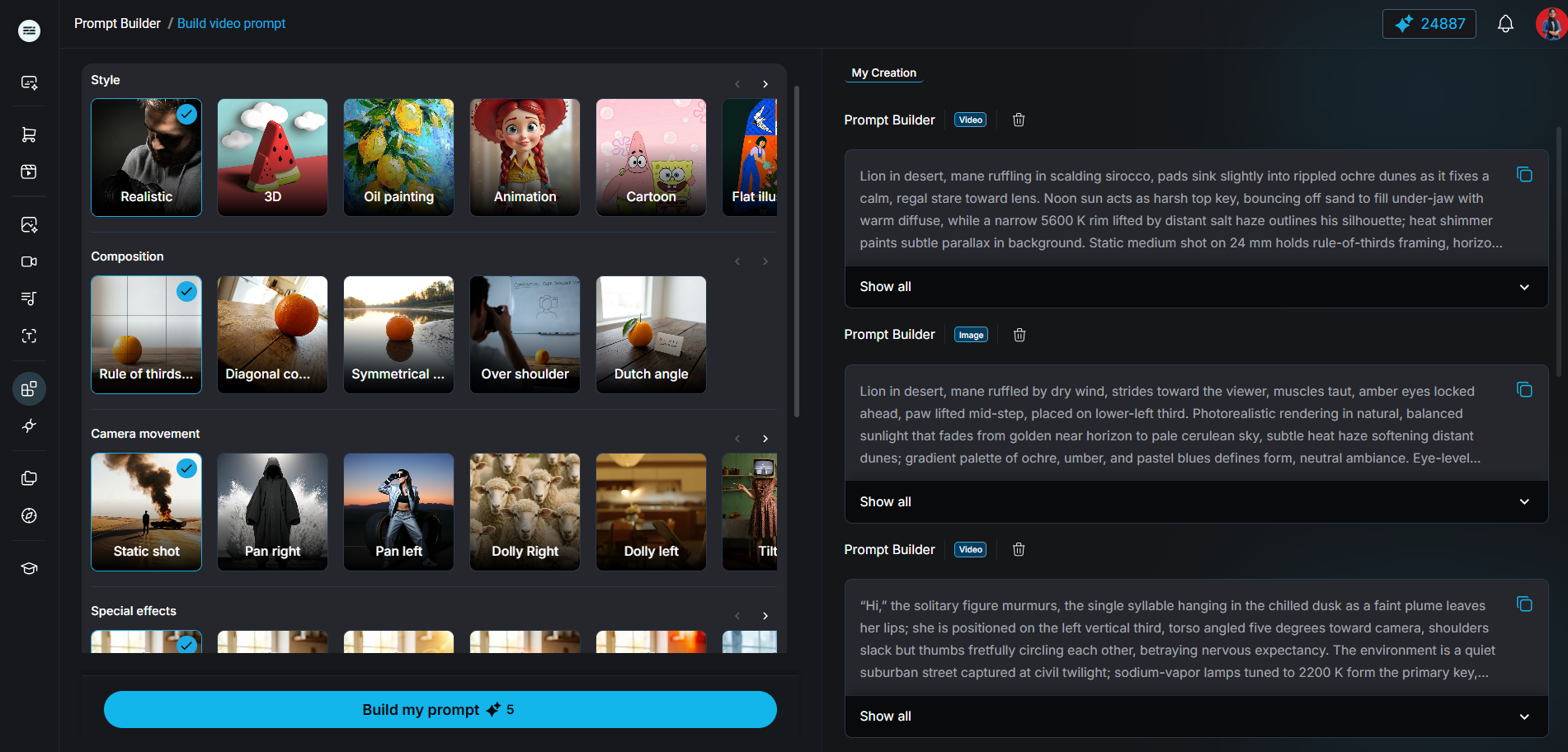
Build video prompt — settings panel and My Creation with detailed video prompt outputs
What it does: Shows the Build Video Prompt screen after you continue with Video Prompt selected.
Video path
- From the start page, choose Video Prompt and enter your idea.
- Tap Continue to open
/prompt-builder/create?type=video. - Tune video selectors such as Style, Composition, Camera movement, Camera direction, Shot size, Focal length, Pacing, and Special effects (based on what the active app exposes).
- Choose a Target model when you want model-specific wording, or leave it unset and use the Prompt length slider (Short → long).
- Tap Build my prompt and review the result in My Creation.
- Copy the prompt, or use Use this prompt to open Video Studio with the text carried over.
Image and video prompts should not be identical. An image prompt describes a resolved frame, while a video prompt describes change over time.
| Prompt layer | Image guidance | Video guidance | Review question |
|---|---|---|---|
| Subject | Identity, materials, pose | Identity plus starting state | Is the subject correct and recognizable? |
| Composition | Framing, viewpoint, negative space | Opening and final framing | Does the asset fit the intended channel? |
| Movement | Usually not applicable | Subject, camera, and environmental motion | Is each movement clear and physically plausible? |
| Constraints | Artifacts, unwanted objects, protected details | Continuity, cuts, protected details | What changed that should have remained fixed? |
| Iteration | Change one visual variable | Simplify timing or motion first | Can you identify why the revision helped? |
Stage 5 — Build the prompt in seven passes
Separate decisions so weak results are easier to diagnose.
What it does: A checklist you can use inside or outside Prompt Builder.
- Define the job. Write one sentence covering asset, audience, channel, and intended response.
- Lock the subject. Define product type, shape, finish, wardrobe, or character traits. Use references only when authorized.
- Design the scene. Describe location, surfaces, props, and background depth. Prefer a few deliberate elements.
- Direct the frame. Set shot size, viewpoint, lens character, and negative space. For video, define camera movement separately from subject movement.
- Set light and color. Name light source, softness, direction, contrast, and palette.
- Add constraints. Specify what must not change and what should not appear.
- Plan the review. Decide how you will judge identity, composition, anatomy, legibility, continuity, and brand fit before generating.
Stage 6 — Try it (two copyable briefs)
Paste into Prompt Builder, then adapt the output for your target model.
Copy each brief into Prompt Builder. Choose Image Prompt or Video Prompt to match the example. Adjust product details only and keep claims conservative.
Create a product-page hero image for a refillable amber-glass hand-soap bottle. Show one bottle centered on pale limestone with generous negative space on the right for approved copy. Use soft morning window light from the left, gentle realistic shadows, a warm neutral palette, and restrained editorial styling. Preserve the bottle's cylindrical silhouette, black pump, and front-label placement from the authorized reference. Keep props minimal: one folded natural-linen cloth in the background. No hands, duplicate bottles, added text, invented logos, floating objects, or dramatic reflections.
I want to make an ad about a skincare product. Open on a clean bathroom counter at dawn. A single serum bottle is centered. Soft window light from the left. Slow push-in over six seconds. End on the label readable at delivery size. No invented claims, no hands, no extra products, no on-image text.
Stage 7 — Adapt structure to the medium and model
Prompt Builder variants are starting points — the generator UI is the source of truth.
What it does: Explains how to move from Prompt Builder output to Image Studio or Video Studio without overstating what any model will do.
On the build screen, Target model is the main in-product control for model-specific wording. When selected, Prompt Builder shows: Your prompt will be built specifically for this tool. That is backend-assisted adaptation — not a guarantee of identical behavior in every generator.
After generation, you can copy from My Creation or use Use this prompt to open the matching Image or Video app with the text carried over. Manual edits are still normal when a model exposes extra controls (duration, aspect ratio, reference strength).
Keep a prompt log with input, target model, visible settings, references, selected output, and revision notes. For example, “Improved lighting” is vague, while “Changed hard overhead light to a large soft source at camera left” is actionable.
Related workflows
- Expertex Agent: Chat-first routing into image and video jobs.
- AI product photography workflow: Clean packshots before campaign prompts.
- Create AI video with Expertex: Motion workflows beyond a single prompt block.
| Failure mode | Likely cause | Fix in Prompt Builder |
|---|---|---|
| Generic result | Vague objective or art direction | Add audience, material, lighting logic — not more adjectives |
| Crowded frame | Too many props or actions in the brief | Reduce scene inventory; simplify video motion |
| Identity drift | Weak or missing references | Strengthen authorized refs; make protected features explicit |
| Inaccurate text | Relying on generated lettering | Plan to typeset approved copy in post |
| Model mismatch | Same prose for every generator | Re-build on Image vs Video path; set Target model; copy from My Creation |
Stage 8 — Honest limits
Prompt quality cannot remove model uncertainty.
What it does: Sets accurate expectations before you scale the workflow.
The practical goal is a repeatable loop: brief, structure, adapt, generate, inspect, revise, and approve.
| Limit | What to do |
|---|---|
| No final render in Prompt Builder | Copy the structured prompt into Image Studio, Video Studio, or your target tool |
| Model behavior varies | Treat each output as a starting point; verify controls in the generator |
| Target model is guidance | Re-test when you switch models or apps |
| Product accuracy | Generated shots can mislabel packaging. Inspect every frame at full resolution |
| Synthetic media | Confirm rights, consent, and channel disclosure rules before publishing |
| Compliance | Pricing, regulated claims, and product facts need human sign-off |
The value is structure: turn a rough idea into a brief any model can work from — then let human review close the loop before publish.