Before you start
What this post does: Walks the real Expertex Voice Studio apps you open from the landing cards—Text to Speech, Voice Changer, Speech to Text, Noise Remover, and Sound Effects—using the live UI flow for ads, Reels, and UGC.
Important: Voice Studio does not replace legal review, brand approval, or platform disclosure rules for synthetic voice. Treat every take as a draft until a human signs off on tone, claims, and consent.
Start here:
- Voice Studio
- Prompt Builder (script structure)
- Create AI video with Expertex
Stage 1 — Open Voice Studio and pick an app
One suite, five audio jobs—no separate vendor logins.
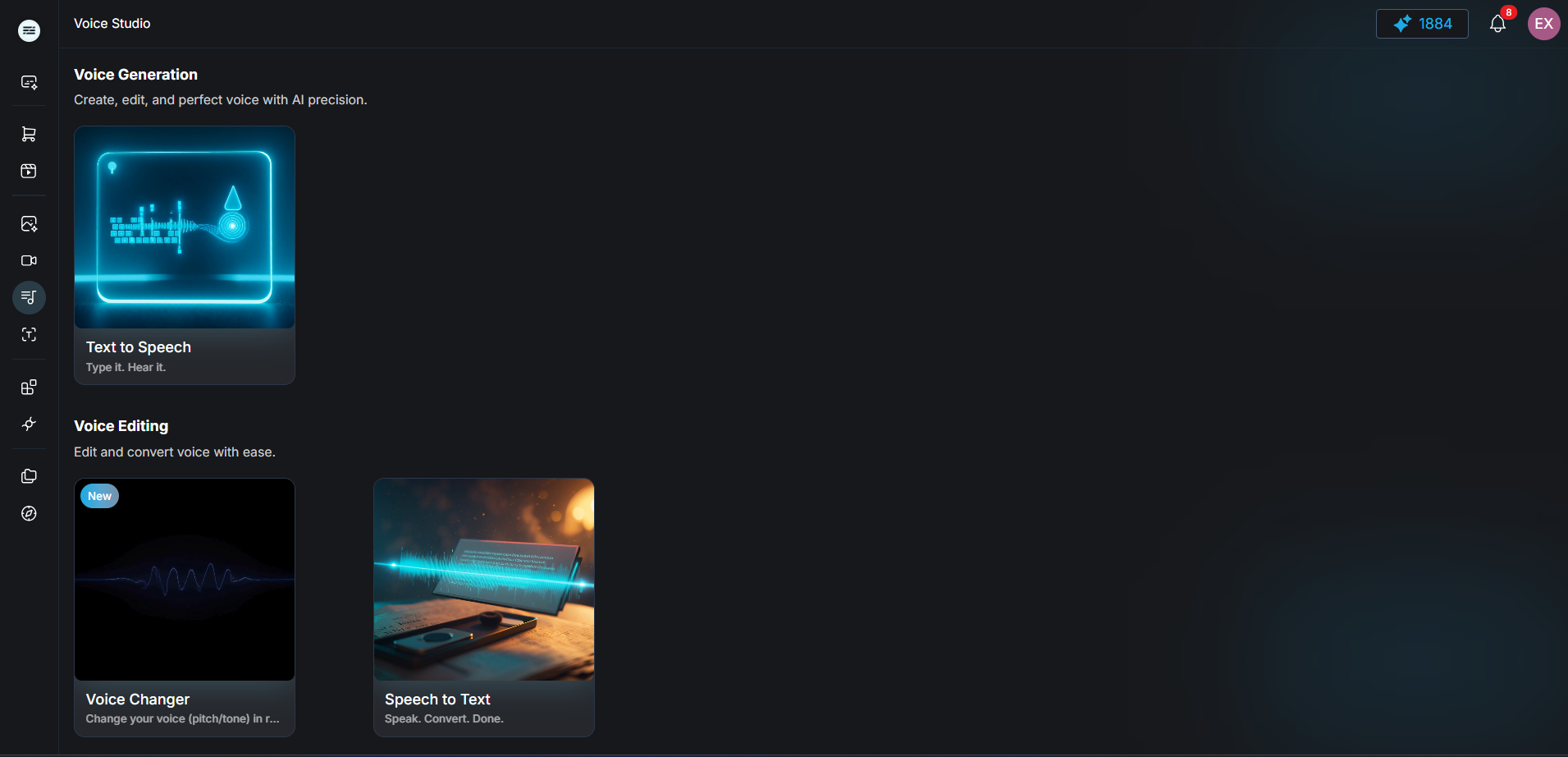
Voice Studio landing — app cards for Text to Speech, Voice Changer, Speech to Text, Noise Remover, and Sound Effects
What it does: The Voice Studio landing shows cards for every audio app in the suite. Pick the job you need, then work left-to-right: configure inputs, generate, review in My Creations.
Teams that generate visuals first often lose momentum at the voiceover step—tone mismatch, export/import loops, and editors waiting on audio. Voice Studio keeps those steps inside Expertex next to Image and Video.
| App card | Job |
|---|---|
| Text to Speech | Turn a script into a voiceover (two-speaker dialogue when the model supports it) |
| Voice Changer | Upload or record audio, then transform it into a selected voice |
| Speech to Text | Transcribe upload, record, YouTube, or URL sources into reusable copy |
| Noise Remover | Clean noisy takes before publish or further processing |
| Sound Effects | Generate short cues from a text description |
Pro tip: Write the first 2 seconds as a hook (“Stop scrolling if…”). Paste only that hook into Script, generate, listen, then expand the script and generate again—or keep the hook as a separate short take you mix in edit.
| Need | Separate audio tools | Expertex Voice Studio |
|---|---|---|
| Script → voiceover | Export script elsewhere | Text to Speech in-product |
| Two-speaker dialogue | Manual stitch / new tool | Dialogue-capable model (e.g. ElevenLabs Text to Dialogue V3) + Speaker 1 / Speaker 2 tags |
| Alternate character voices | New vendor / new login | Voice Changer in same suite |
| Transcribe existing clips | Extra transcription app | Speech to Text (upload, record, YouTube, URL) |
| Clean noisy takes | Extra cleanup app | Noise Remover |
| Light SFX under the hook | Stock library hunt | Sound Effects from a short prompt |
Stage 2 — Text to Speech: start from a blank script
Script field, Speaker 1 / Speaker 2, model settings, Convert to speech.
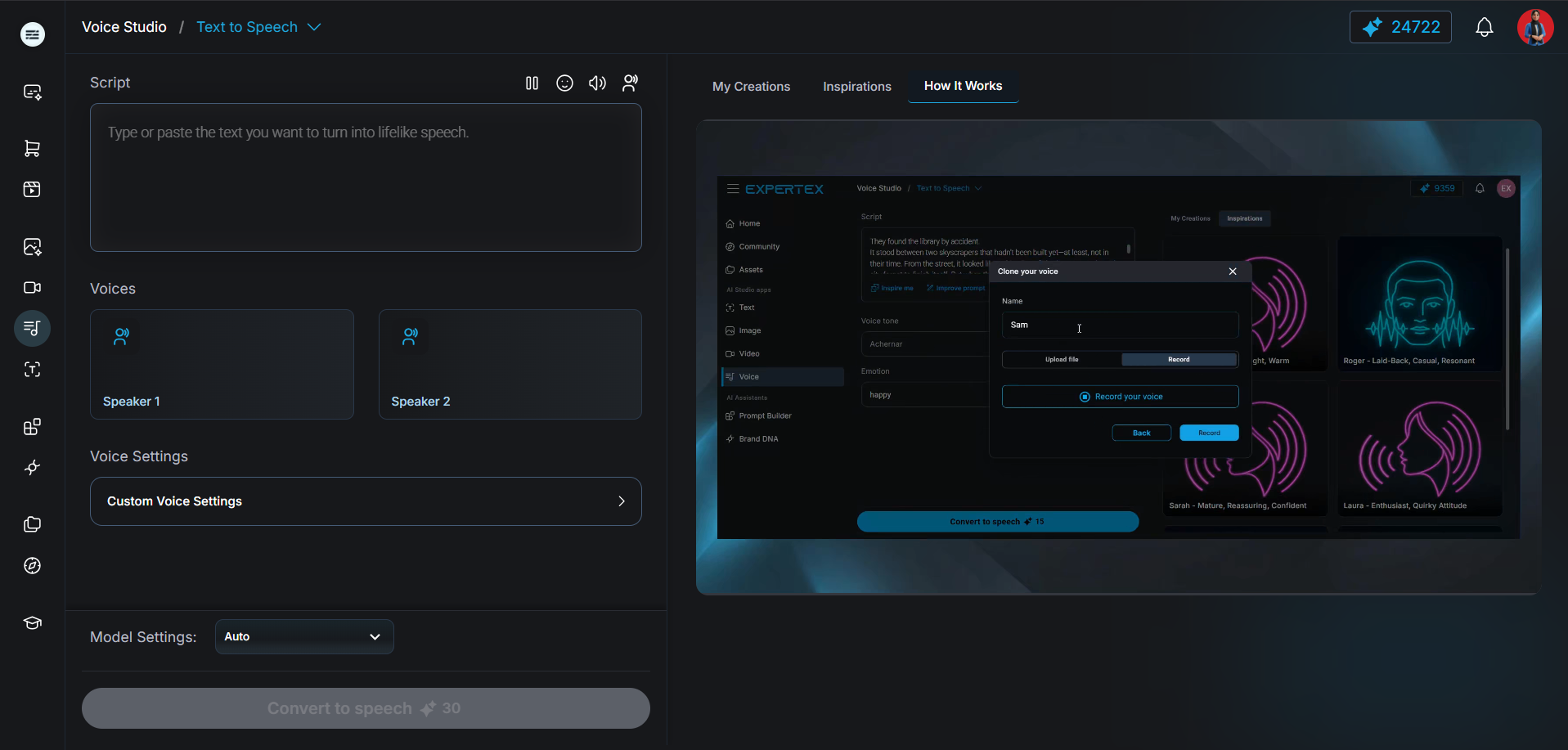
Text to Speech home — empty Script field, Speaker 1 / Speaker 2 cards, Model Settings, and Convert to speech
What it does: Matches the live Text to Speech workspace. Paste text into Script, assign voices under Speaker 1 (and Speaker 2 when your model supports dialogue), tune Voice Settings and Model Settings (often Auto), then tap Convert to speech.
The right panel opens on Inspirations by default; switch to How It Works for the tutorial video, or My Creations after you generate. To clone a custom voice, open voice selection and use Instant or Professional clone (upload or record)—only with authorized likenesses.
| UI control | What you do |
|---|---|
| Script | Type or paste the lines you want spoken |
| Insert menus | Add pause, emotion, SFX, or speaker tags when the model supports them |
| Speaker 1 / Speaker 2 | Pick a voice per speaker — Speaker 2 is active only on Dialogue-capable models |
| Voice Settings | Fine-tune stability, similarity, style, and speed when the model exposes sliders |
| Model Settings | Choose Auto or a specific provider/model |
| Convert to speech | Generate the take and review it under My Creations |
Stage 3 — Text to Speech: two speakers, pauses, and emotion tags
Dialogue scripts work when you pick a Dialogue-capable model.
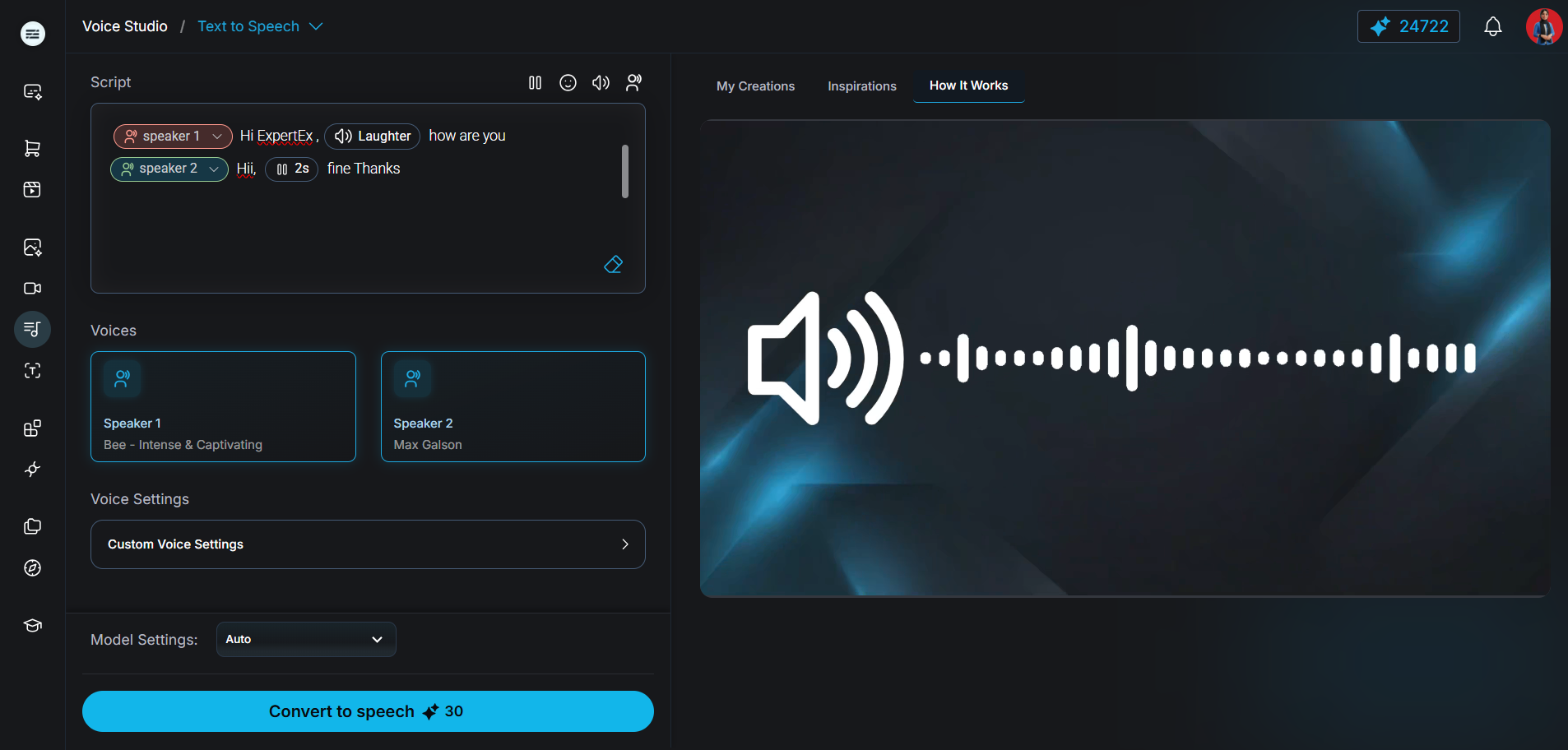
Text to Speech with inputs — Speaker 1 / Speaker 2 dialogue, laughter and pause tags, and selected voices
What it does: Shows a filled Text to Speech run with two people in one script. Speaker tags mark who speaks; inline pause and emotion tags add natural delivery (for example laughter or a 2-second pause)—but only when the selected model lists Dialogue, Pause, and Emotion in its supported inputs.
Two-speaker path
- Open Text to Speech.
- In Model Settings, pick a Dialogue-capable engine (for example ElevenLabs Text to Dialogue V3)—single-voice models keep Speaker 2 disabled.
- Insert Speaker 1 and Speaker 2 into the script (or type dialogue with
@speaker 1:/@speaker 2:markers). - Assign a different voice to each speaker card—for example Bee for Speaker 1 and Max Galson for Speaker 2.
- Add pause or emotion tags where delivery needs breath or energy.
- Tap Convert to speech and listen before you download.
Use this for UGC-style back-and-forth, FAQ ads, or founder-plus-customer formats. Keep claims conservative and review every take on phone speakers.
Stage 4 — Text to Speech: review the generated take
My Creations shows the model, speakers, markup, and playable MP3.
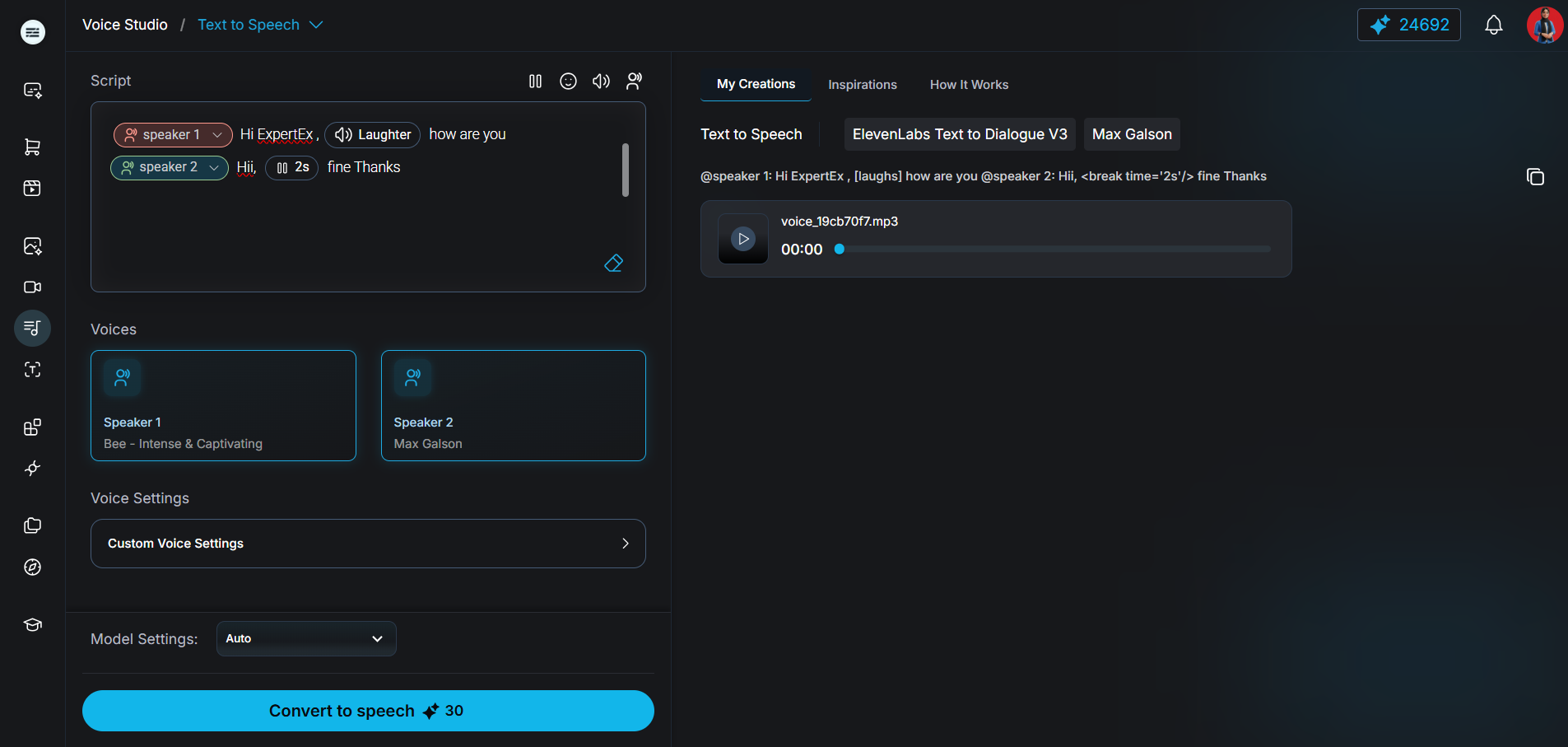
Text to Speech output — My Creations with model tags, dialogue markup, and a playable voice MP3
What it does: After generation, My Creations opens automatically (or switch to that tab). You should see tags for the app and model (for example ElevenLabs Text to Dialogue V3 or ElevenLabs V3), the resolved script markup, and an audio player for the MP3.
Compare takes on the same script before you lock one. If the hook is weak, edit the Script to isolate that line and tap Convert to speech again—or swap one speaker voice—rather than rewriting the whole dialogue. There is no per-line regenerate button.
When the take sounds on-brand, download the MP3. Pair it with video in LipSync Studio (Upload Audio tab), attach as a reference on supported Create Video models, or use Reel Studio for voice generated inside its own pipeline—not by importing this file directly.
Read this as a 12-second TikTok/Reels voiceover. Energetic, clear, friendly. Pause slightly after the hook.

Hook: Stop scrolling if your product videos look great but sound generic.
Body: Generate an on-brand voiceover in Expertex Voice Studio, then drop it into your Reel.
CTA: Open Voice Studio and turn this script into audio today.
Stage 5 — Voice Changer: transform an existing clip
Upload or record → pick a target voice → Change Voice.
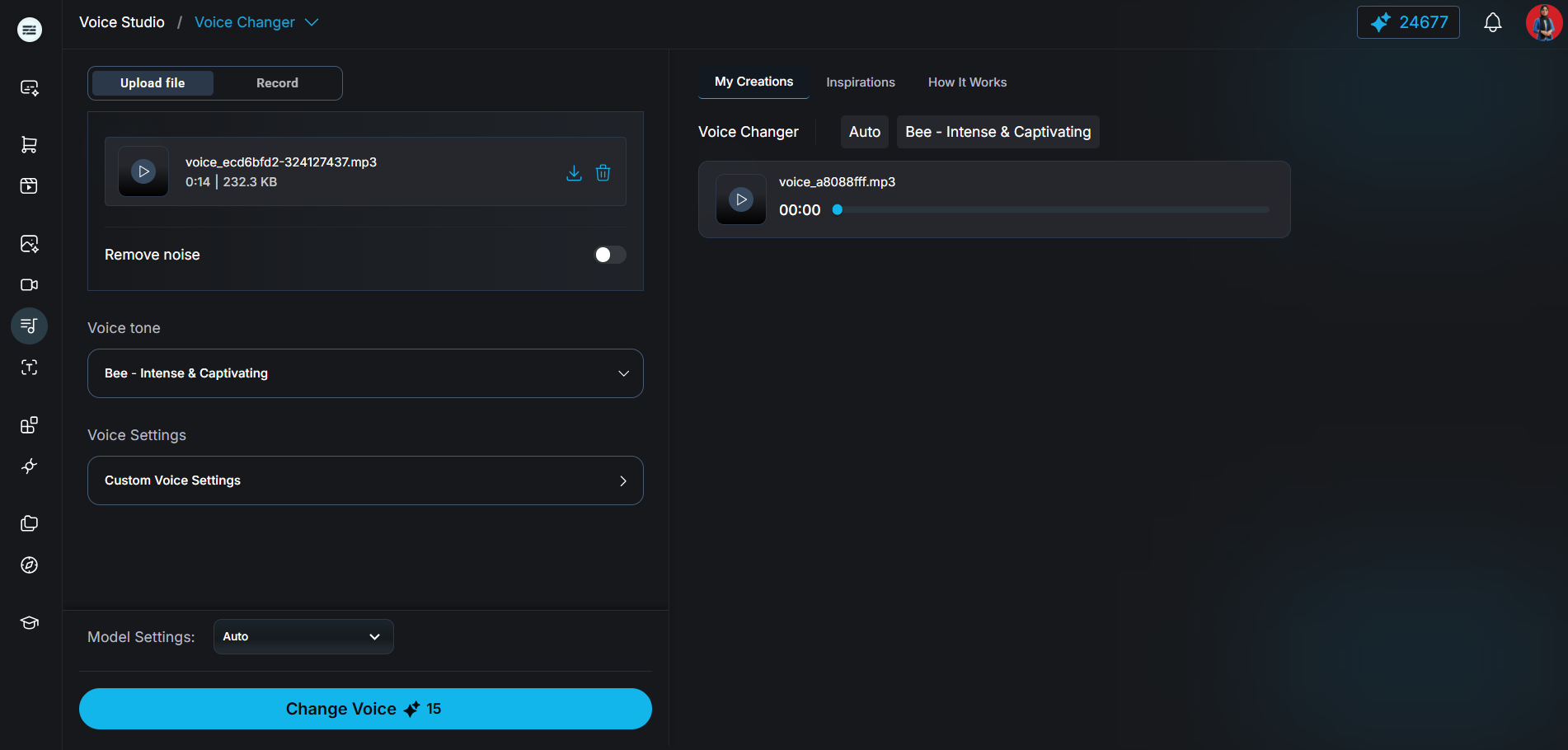
Voice Changer — uploaded source MP3, Remove noise toggle, target voice, and Change Voice action
What it does: Matches the live Voice Changer app. Bring source audio via Upload file or Record, optionally enable Remove noise, choose a target voice tone, set Model Settings, then tap Change Voice.
Useful when you already have a readable take but need a different character for UGC-style ads. Confirm consent and disclosure before publishing transformed likenesses.
| UI control | What you do |
|---|---|
| Upload file / Record | Provide the source clip you want transformed |
| Remove noise | Optional cleanup before the voice swap |
| Voice tone | Select the destination voice (for example Bee — Intense & Captivating) |
| Custom Voice Settings | Fine-tune when your model exposes sliders |
| Change Voice | Generate and review the result in My Creations |
Stage 6 — Speech to Text: recover scripts from audio or video
Upload, Record, YouTube, or URL—then export the transcript.
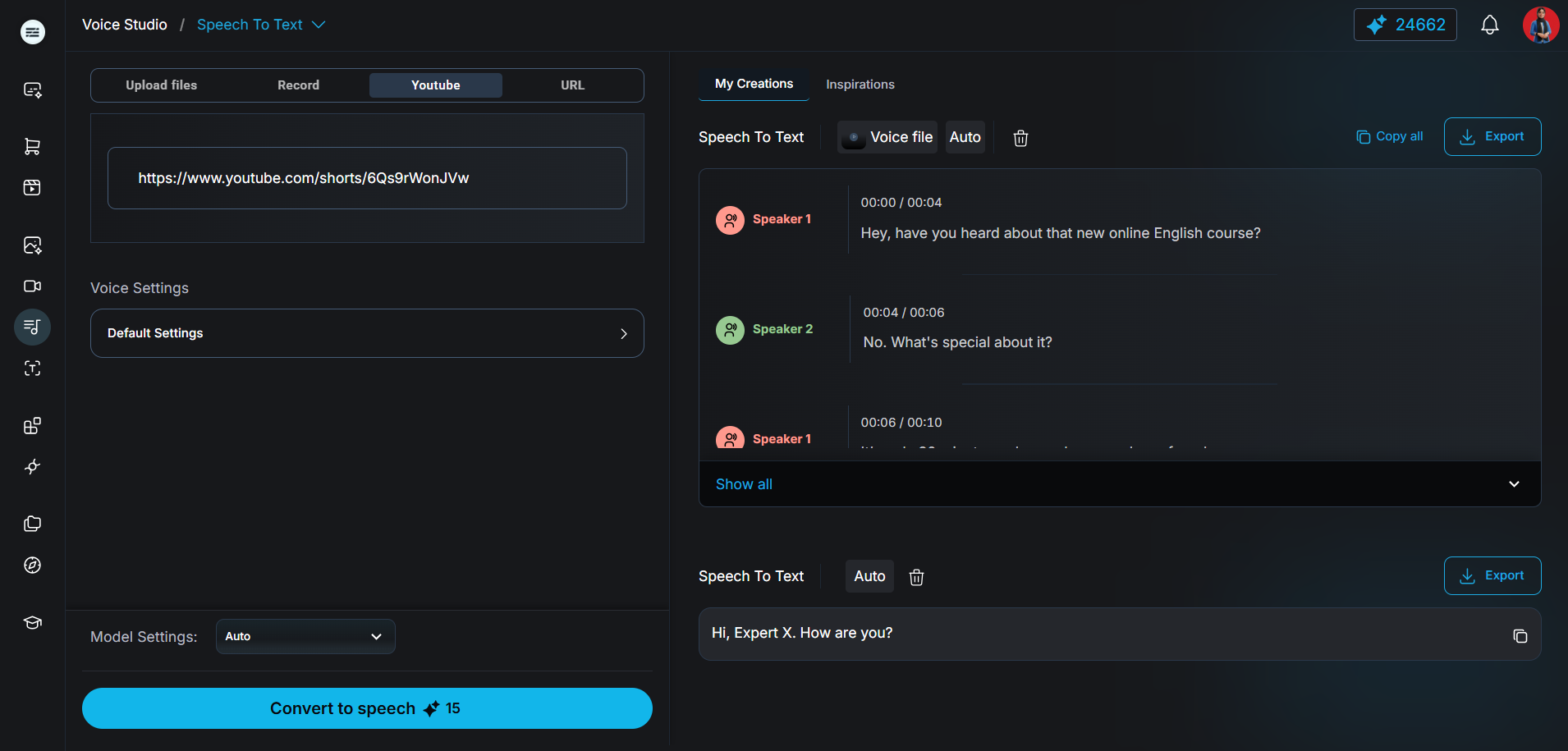
Speech to Text — YouTube source input and My Creations transcript with Speaker 1 / Speaker 2 timestamps
What it does: Matches the live Speech to Text app. Choose a source tab (Upload files, Record, Youtube, or URL depending on the selected model), set Model Settings, and tap Convert to speech. Results land in My Creations with timestamps and, when supported, speaker diarization.
Speech to Text path
- Open Voice Studio → Speech to Text.
- Pick a source: upload a file, record in-browser, paste a YouTube link (Gemini and some models), or use a direct URL when the model exposes the URL tab.
- Confirm Model Settings (Auto is fine for a first pass).
- Tap Convert to speech, then use Copy all or Export to move lines into Prompt Builder, Text to Speech, or your edit doc.
Ideal for rebuilding scripts from existing Reels, localizing approved copy, or turning a founder walkthrough into reusable dialogue.
Stage 7 — Noise Remover: clean the take before you publish
Upload or record → Remove Noise → listen in My Creations.
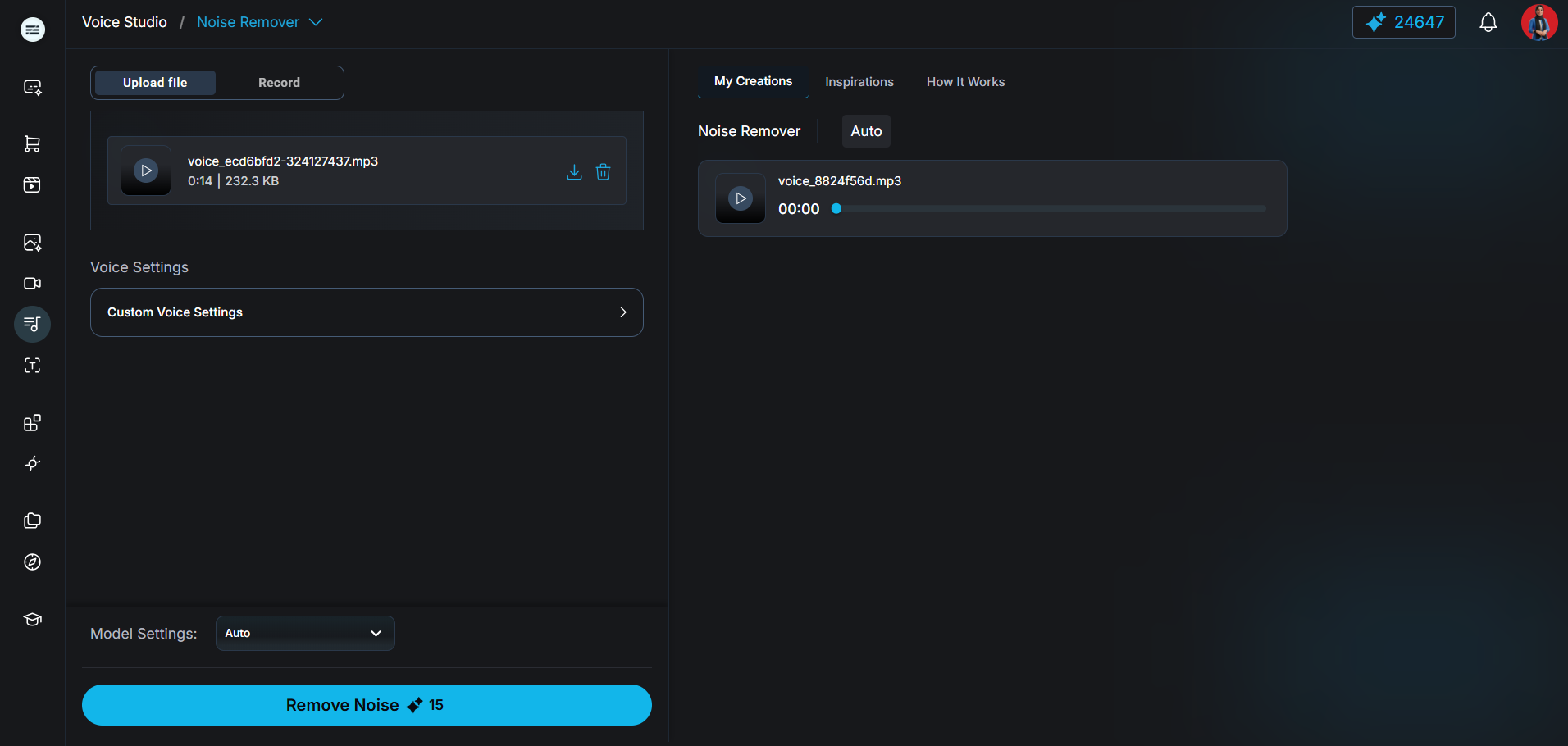
Noise Remover — uploaded source file, Model Settings on Auto, Remove Noise action, and cleaned output in My Creations
What it does: Matches the live Noise Remover app. Upload a file or Record, tune Voice Settings if needed, leave Model Settings on Auto unless you have a preferred engine, then tap Remove Noise. Review the cleaned MP3 under My Creations.
Run this before Voice Changer or final export when the source has room tone, keyboard noise, or webcam hiss. Do not expect it to fix clipped levels or a mumbled performance—re-record those.
Stage 8 — Sound Effects: generate a cue from a short prompt
Sound description + Prompt influence → Generate.
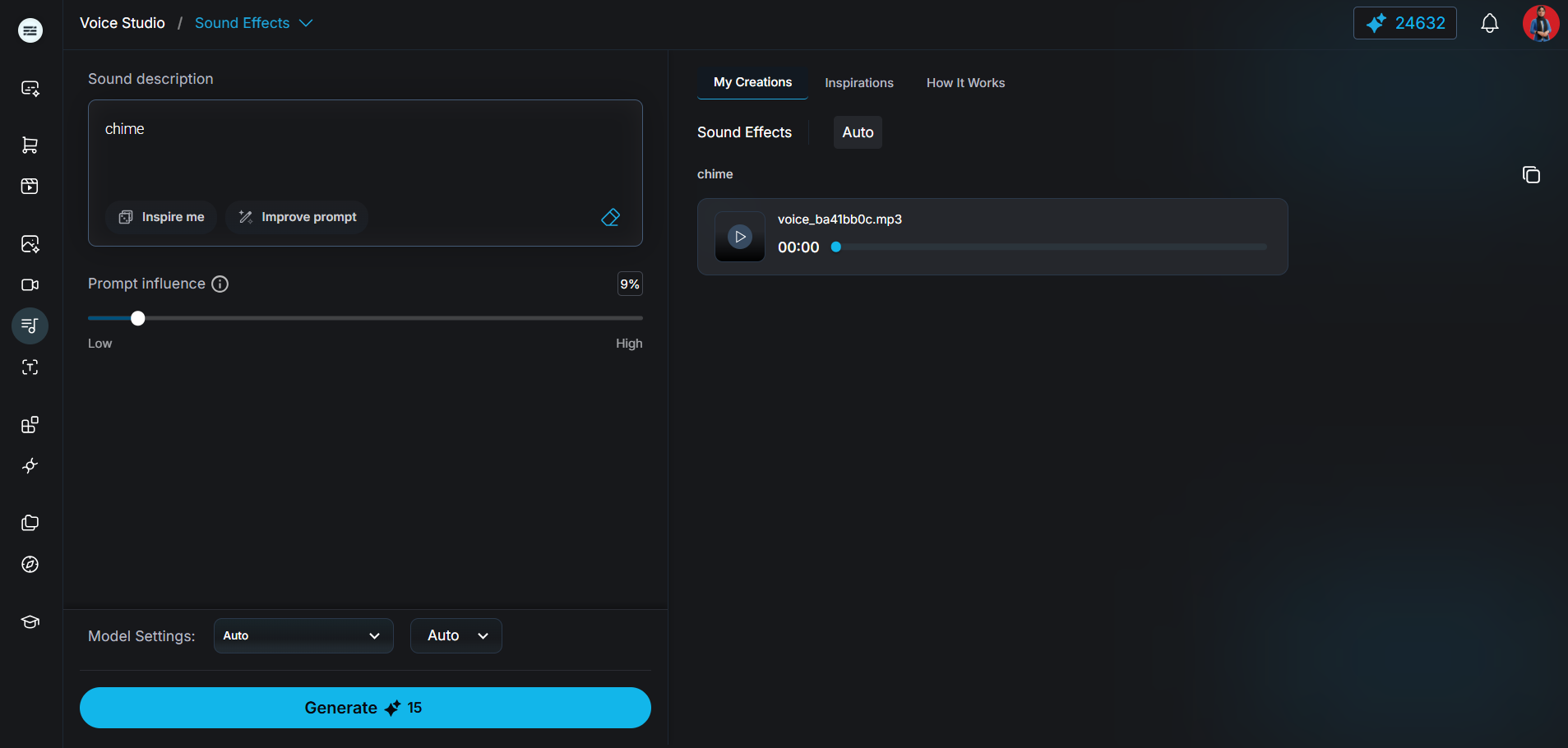
Sound Effects — sound description prompt, Prompt influence slider, Generate action, and playable result in My Creations
What it does: Matches the live Sound Effects app. Describe the sound (for example “chime”), set Prompt influence (how tightly the model follows your wording), choose duration/model settings, then Generate. Preview the MP3 in My Creations.
Keep SFX under the hook light—one cue that supports the first second is usually enough. If effects compete with the voice, lower influence or drop the layer.
Stage 9 — Drop audio into video and Reels
Voice is a handoff, not a dead end.
What it does: Connects Voice Studio output to motion workflows already in Expertex.
- Lock script in Prompt Builder or Agent when you need structured copy first.
- Generate and download the winning take from Text to Speech (or clean/transform with Noise Remover / Voice Changer first).
- Sync with video: use LipSync Studio → Upload Audio for talking-head sync; attach the MP3 as a reference input on supported Create Video models; or build short-form stories in Reel Studio where voice is generated inside that workflow.
- Review pacing, music bed, and SFX together—not in isolation.
- Run a final listen on phone speakers before publish.
Related workflows
- Prompt Builder: structure scripts and creative briefs before voice.
- Create AI video with Expertex: motion workflows after audio is locked.
- Brand DNA for consistent AI content: keep tone aligned across suites.
- How to create AI UGC ads: full pipeline from product to voice and music.
| Failure mode | Likely cause | Fix in Voice Studio |
|---|---|---|
| Flat or generic delivery | Default voice with no hook-first test | Test a short hook script first; edit Script and Convert to speech again, or swap Speaker voice |
| Confusing dialogue | Single-voice model or one voice for two roles | Pick a Dialogue model; assign different voices to Speaker 1 and Speaker 2 |
| Tone mismatch vs brand | Voice picked for clarity, not campaign energy | Re-select voice; align script with Brand DNA or brand guidelines |
| Noisy source after Voice Changer | Skipped cleanup | Enable Remove noise or run Noise Remover first |
| Weak transcript from YouTube | Wrong model for multi-speaker clips | Switch model or upload a cleaner source file |
| Over-produced SFX | Effects competing with the voice | Lower Prompt influence; keep one cue under the hook |
Stage 10 — Honest limits
Synthetic voice quality cannot remove compliance or brand risk.
What it does: Sets accurate expectations before you scale the workflow.
The practical goal is a repeatable loop: pick the app, configure inputs, generate, listen, refine, export, sync with video, and approve.
| Limit | What to do |
|---|---|
| Voice cloning and likeness | Use only authorized voices; confirm consent and disclosure rules. |
| Regulated claims | Human review required for pricing, health, and performance statements. |
| Platform policies | Check synthetic-media rules for ads, Reels, and UGC formats. |
| Localization | Re-generate and re-review—not just translate—when entering new markets. |
| Final QC | Listen on phone speakers and laptop speakers; bad audio hides on studio monitors. |
We stopped waiting on external voiceovers for every Reel. Voice Studio lets us test three spoken hooks the same afternoon we lock the visual—and the winners actually sound like our brand.
Performance creative lead